Uploading Your Compliance Documents
This guide walks AFG brokers through how to download their Credit Guide and Privacy Policy and add them to InstantAPPLY.
Uploading your compliance documents ensures that InstantAPPLY is compliant and up-to-date.
NOTE: If your Credit Guide and Privacy Policy are already hosted on your website, you can skip straight to Step 3.
Step 1: Download Your Credit Guide and Privacy Policy
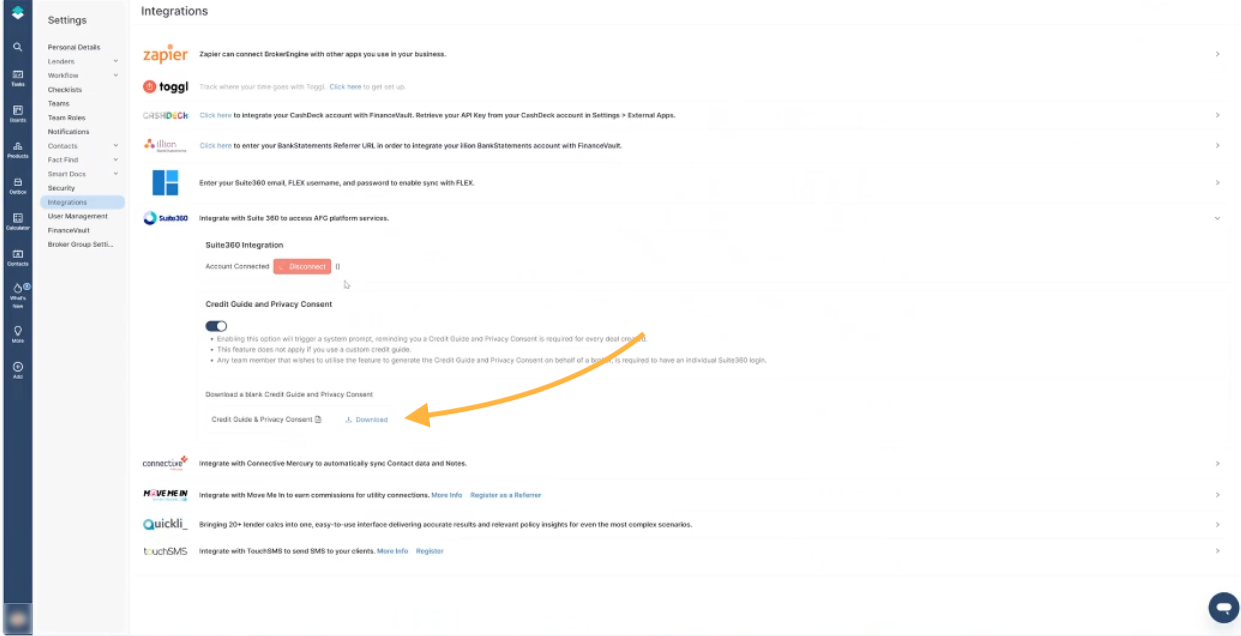
You can download your Credit Guide and Privacy Policy from the Integrations section of Broker Engine.
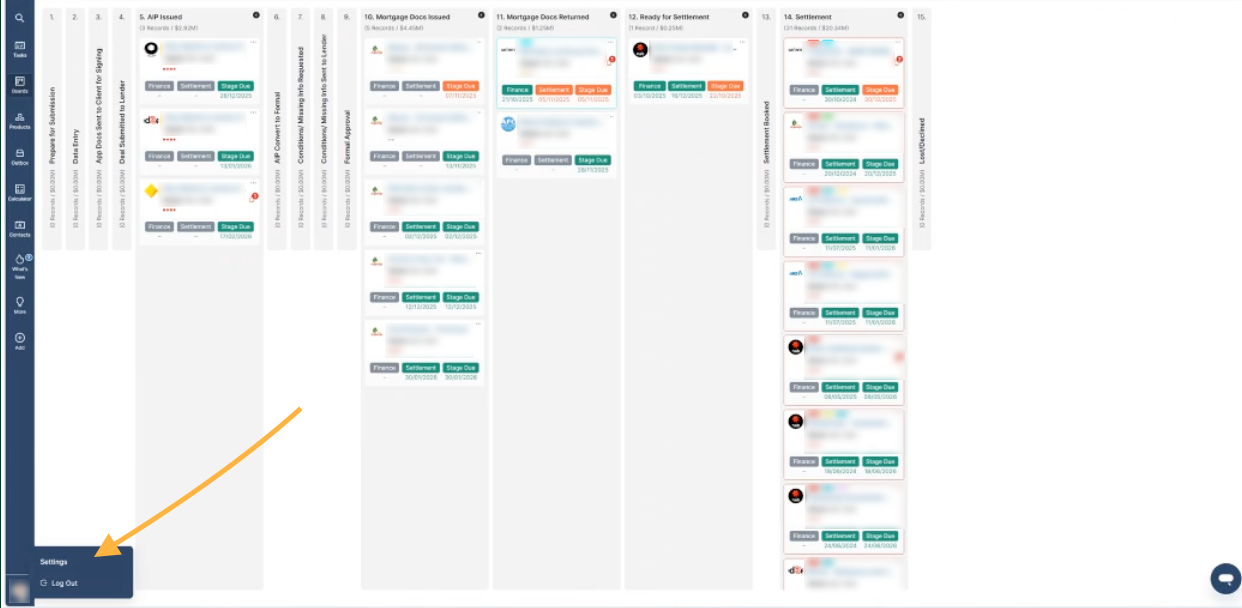
- Click your profile icon in the bottom-left corner and select settings
- Click Suite 360 Integrations
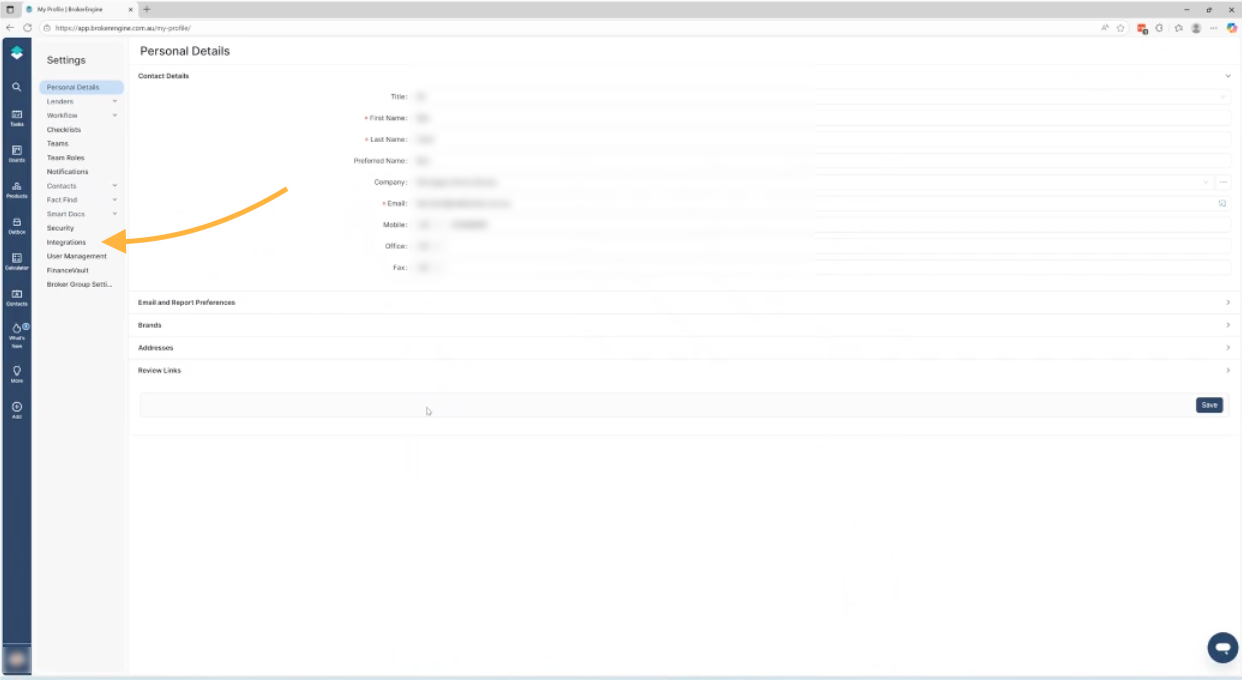
- Download your Credit Guide and Privacy Policy
Step 2: Create a Public Link for InstantAPPLY
InstantAPPLY requires a public URL to your documents. To do this, upload the files to a cloud storage service such as Google Drive, OneDrive, or Dropbox.
- Upload your Credit Guide and Privacy Policy PDFs to your chosen drive
- Copy the link to each PDF
- Ensure the sharing settings allow anyone with the link to view
Note: This step can vary depending on the storage provider you use, which is why screenshots are not included.
Step 3: Add the Link to InstantAPPLY
Once you have a public link, add it to InstantAPPLY.
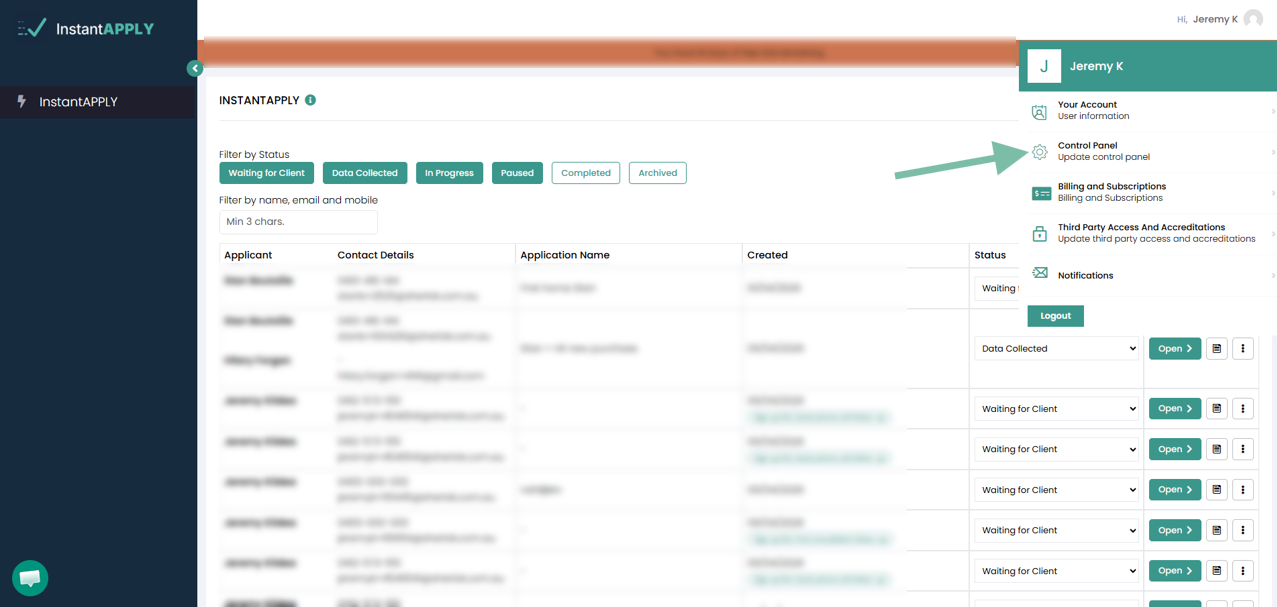
- In InstantAPPLY, click your name in the top-right corner
- Select Control Panel
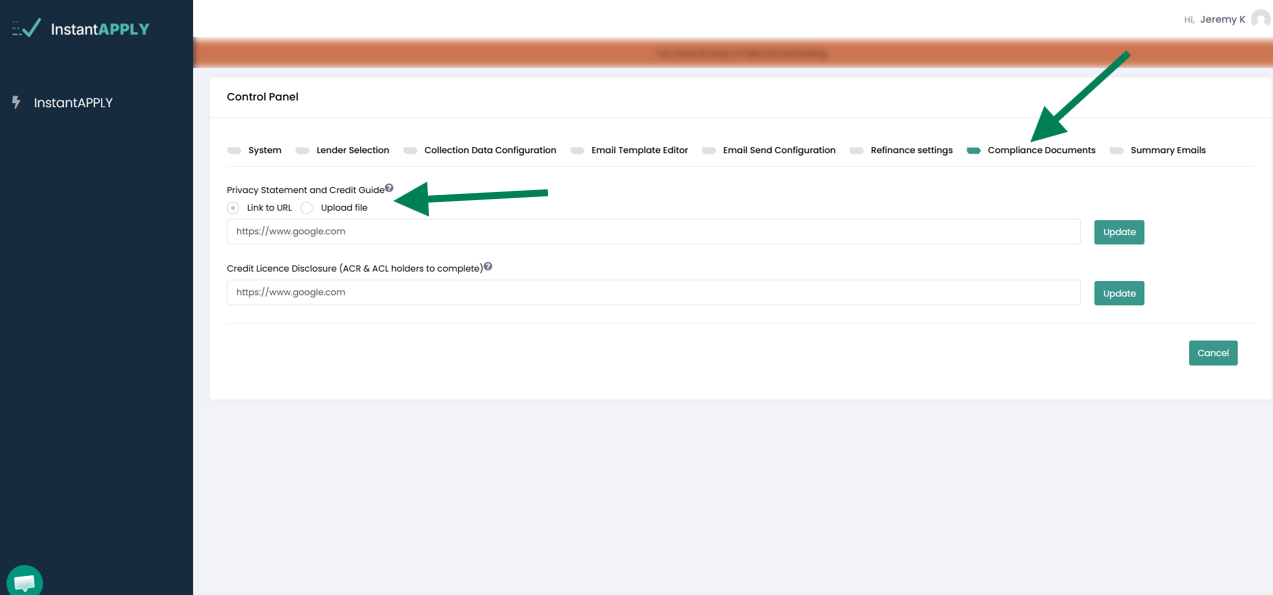
- Click Compliance Documents
- Paste the link into the “Privacy Statement and Credit Guide URL” field
- Click Update